

 >
Convert M3U8 files to MP4 Online/Offline Free
>
Convert M3U8 files to MP4 Online/Offline Free

To come straight to the point, I'd like to highly recommend Acrok Video Converter Ultimate – the best M3U8 to MP4 converter for Windows and Mac. Featuring professional-grade conversion services, it not only supports over 500 video/audio format conversions but also allows you to edit videos with its versatile editing functions, and rip Blu-ray/DVD to any device-supported format.
Features of Acrok M3U8 to MP4 Converter
Free download and try the best M3U8 to MP4 Converter.
 100% Safe & Clean 100% Safe & Clean
M3U8 is a file format commonly used for streaming video content over the internet. However, M3U8 files are not as widely supported as MP4 files, which are compatible with most devices and media players. If you have an M3U8 file that you want to convert to MP4, here are several methods you can use.
VLC Media Player is a free, open-source multimedia player that can also convert media files from one format to another. Here's how to use VLC to convert M3U8 to MP4:
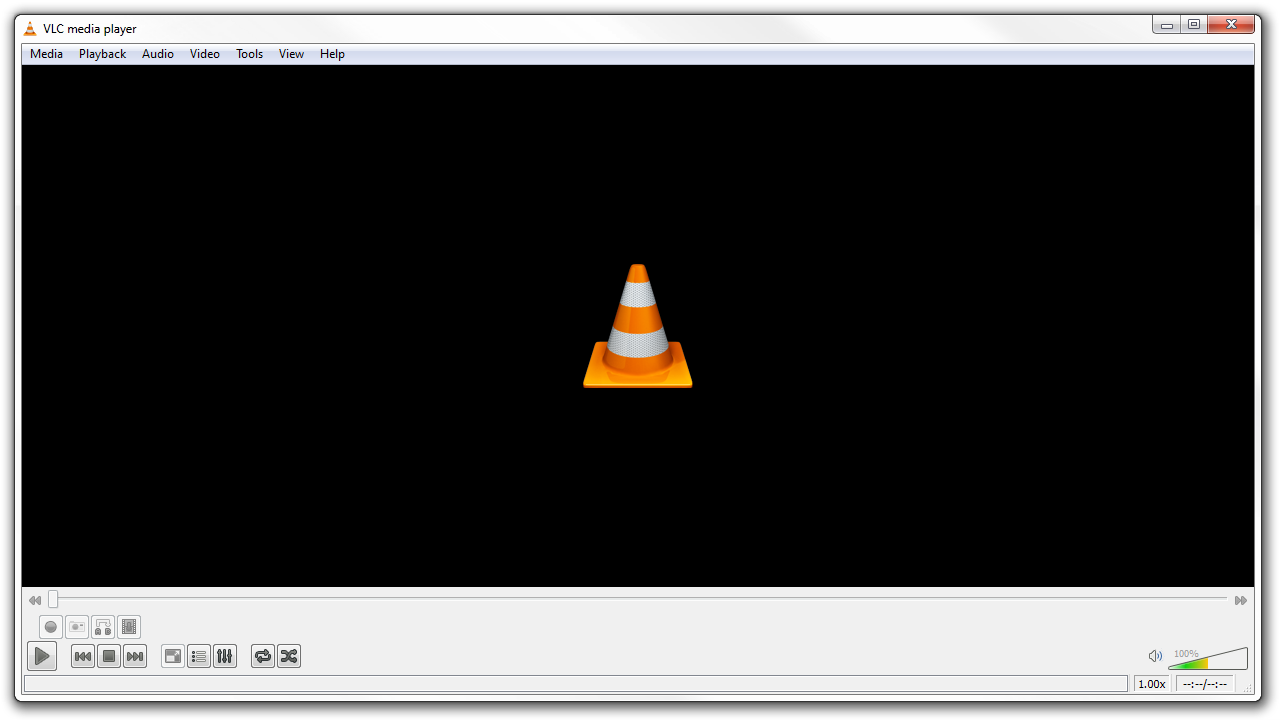
Limitations of Using VLC Media Player for Video Conversion
While VLC Media Player is a versatile and widely-used multimedia player that also offers video conversion capabilities, it does have some limitations when it comes to converting video files. Below are the main drawbacks:
Limited Output Format Options: VLC supports a wide range of input formats, but its output format options are somewhat limited. Users may find that the software does not support some specialized or less common output formats they require.
Basic Conversion Features: VLC's conversion feature is relatively basic compared to dedicated video conversion software. It lacks advanced editing options such as trimming, cropping, or adding subtitles – features that are often available in more specialized conversion tools.
User Interface: The user interface for VLC's conversion feature is not as intuitive or user-friendly as some dedicated conversion tools. Users who are not familiar with VLC may find it challenging to navigate the conversion settings.
Conversion Speed: VLC is not optimized for fast video conversion. The conversion process can be slower compared to software specifically designed for video conversion, especially when dealing with large files or high-resolution videos.
Batch Conversion: VLC does not support batch conversion natively. Users who need to convert multiple files at once may find this limitation inconvenient, as they would have to convert each file individually.
Quality Control: While VLC generally maintains a good balance between file size and quality, it may not offer the same level of control over the output quality as some other conversion tools. Users looking for fine-tuned quality settings might find VLC's options lacking.
No Preview Functionality: VLC does not provide a preview feature during the conversion process. Users cannot preview the output video before completing the conversion, which can be a disadvantage if they need to ensure specific settings are correct.
Error Handling: VLC may not always handle errors during the conversion process as gracefully as some other software. If an issue arises, it can sometimes be difficult to diagnose and resolve within VLC.
Despite these limitations, VLC Media Player remains a popular choice for many users due to its no‑cost, open-source nature and its ability to handle a wide variety of media formats. However, for users with more advanced video conversion needs, it is worth exploring other dedicated video conversion software that offers more features and finer control over the conversion process – such as Acrok Video Converter Ultimate.
Several online tools can convert M3U8 files to MP4 format. Here's how to use one of them:
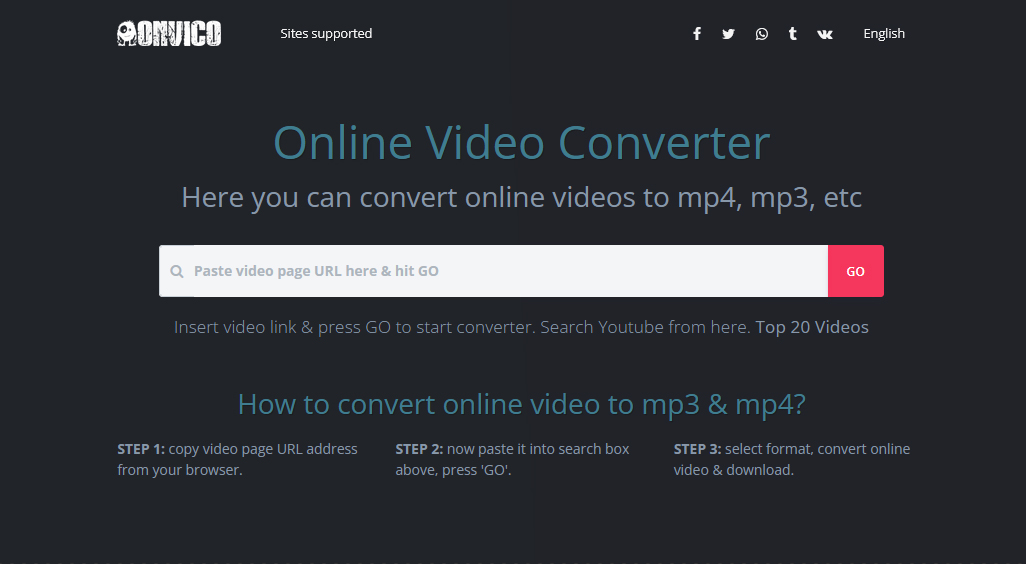
Online video converters offer a convenient way to convert video files without installing software, but they also come with several drawbacks. Below are the main disadvantages:
Internet Dependency: Online converters require a stable internet connection to upload and download files. This can be a significant limitation for users with slow or unreliable connections, as the process can be time-consuming or may fail entirely.
File Size Limitations: Many online converters impose restrictions on the size of files that can be uploaded. Users with large video files may need to split their files or find alternative solutions, which can be inconvenient.
Privacy and Security Concerns: Uploading videos to an online converter can pose privacy and security risks, especially if the content is sensitive or confidential. There is no guarantee that the files will not be stored, accessed, or misused by the service providers or third parties.
Quality Degradation: Some online converters compress video files to reduce their size, which can lead to a loss of quality. Users who require high-quality output may find that online converters do not meet their standards.
Limited Customization: Online converters often offer fewer customization options compared to dedicated software. Users may have limited control over codec settings, bitrate, resolution, and other parameters that affect output quality and file size.
Conversion Speed: Conversion speed can be slow, depending on server load and the user's internet speed. This can be frustrating for users who need quick conversions.
Advertisement and Upselling: Many online converters are supported by advertisements, which can be intrusive. Some services may also try to upsell premium features, which can be annoying for users looking for a straightforward, free solution.
Compatibility Issues: Not all online converters support every video format. Users may encounter compatibility issues if they need to convert less common or proprietary formats.
Lack of Advanced Features: Online converters typically lack advanced features such as batch processing, video editing, or the ability to handle complex conversion tasks. Users with advanced needs may find these services inadequate.
Temporary Availability: Some online converters only keep converted files available for download for a limited time. If users do not download their files promptly, they may lose access to them.
Final Verdict on Online Converters
Despite these drawbacks, online video converters can be a quick and easy solution for simple conversion tasks. However, for users with more demanding requirements or concerns about privacy and quality, offline conversion software – such as Acrok Video Converter Ultimate – is a more suitable option.
FFmpeg is a powerful command-line tool that can convert media files between different formats. Here's how to use FFmpeg to convert M3U8 to MP4:
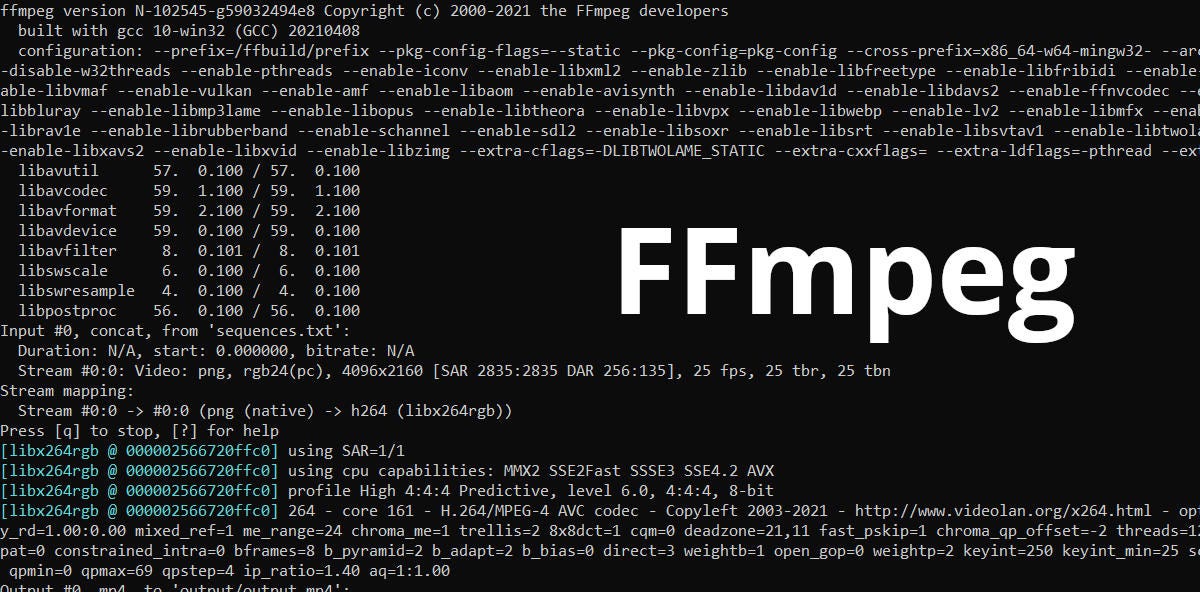
FFmpeg is a powerful and versatile command-line tool for video conversion, widely used for its extensive format support and flexibility. However, it also has some drawbacks that users should be aware of:
Steep Learning Curve: FFmpeg is a command-line tool, which means it lacks a graphical user interface (GUI). This can make it intimidating and challenging for beginners or users who are not familiar with command-line operations. Learning the syntax and commands requires time and effort.
Complexity for Simple Tasks: While FFmpeg is incredibly powerful, it can be overkill for simple conversion tasks. Users who only need basic conversions might find the process unnecessarily complicated compared to using more user-friendly software.
Limited Error Handling: FFmpeg's error messages can be cryptic and difficult to interpret, especially for novice users. Troubleshooting issues during conversion can be frustrating without a clear understanding of the tool's output.
No Built-in Preview: FFmpeg does not provide a built-in preview feature, so users cannot see the results of their conversion settings before completing the process. This can lead to trial and error, especially when fine-tuning parameters.
Manual Configuration Required: FFmpeg requires users to manually configure settings such as codecs, bitrates, and resolutions. While this offers fine-grained control, it can be overwhelming for users who are not familiar with video encoding parameters.
No Batch Processing GUI: Although FFmpeg supports batch processing through scripting, it does not have a built-in GUI for batch conversions. Users need to write scripts or use command-line loops, which can be inconvenient for those unfamiliar with scripting.
Resource Intensive: FFmpeg can be resource-intensive, especially when handling high-resolution videos or complex conversions. This may lead to slower performance on less powerful systems.
Lack of Built-in Editing Features: FFmpeg is primarily a conversion tool and lacks advanced video editing features such as trimming, cropping, or adding effects. Users needing these features must rely on additional tools or complex FFmpeg commands.
Documentation Challenges: While FFmpeg has extensive documentation, it can be dense and difficult to navigate for beginners. Finding specific solutions or examples for unique use cases may require significant effort.
Platform Dependency: Although FFmpeg is cross-platform, certain commands or features may behave differently depending on the operating system. This can lead to inconsistencies for users working across multiple platforms.
Despite these drawbacks, FFmpeg remains a highly capable tool for video conversion and processing, especially for advanced users who require fine control over their workflows. However, for those seeking a more user-friendly experience, dedicated GUI-based software might be a better choice.
Acrok Video Converter Ultimate (For Windows | For Mac) is simply the best choice for your video conversion needs because it supports all the major file formats and converts them at 30X faster speed than traditional converters. It is fully compatible with over 200 video formats including Blu-ay Disc, DVD Disc, MKV, MOV, WMV, AVI, 4K UHD, and other more video files, and converts videos at 30 times faster speed than traditional converters. It also supports NVIDIA NVENC, AMD AMF, Intel QSV hardware acceleration and optimizes output profiles for all mainstream devices.
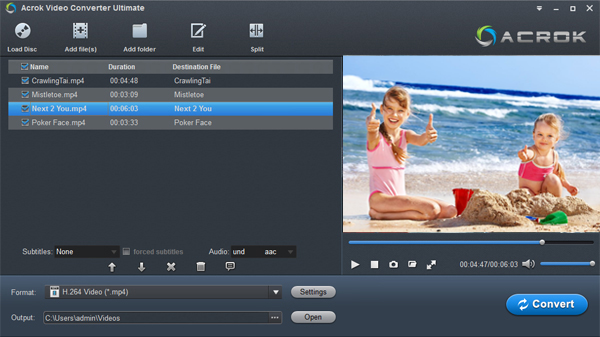
Acrok Video Converter Ultimate is a powerful and user-friendly video conversion tool that supports a wide range of formats, including M3U8 and MP4. If you have some M3U8 files that you want to convert to MP4, follow this step-by-step guide to achieve your goal.
100% Safe & Clean 100% Safe & CleanStep 1: Download and Install M3U8 Converter from Acrok
Download the version of Acrok Video Converter Ultimate compatible with your operating system (Windows or macOS).
Install the software by following the on-screen instructions.
Step 2: Launch this M3U8 to MP4 Converter
Familiarize yourself with the clean and intuitive interface. The main features are displayed on the top sidebar, and the conversion tools are easily accessible.
Step 3: Add Your M3U8 File
To add your M3U8 file, click the "Add Files" button or drag and drop the M3U8 file directly into the program window.
If your M3U8 file is a URL (e.g., a streaming link), you need go to Free Online Video Downloader website (https://en1.savefrom.net/2ol/), paste the M3U8 URL, and download the file first. Then, add the downloaded file to the converter.
Step 4: Choose MP4 as the Output Format
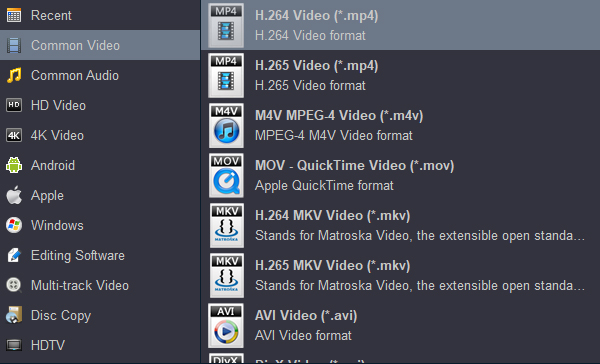
After adding the M3U8 file, click the "Format" dropdown menu on the right side of the file.
Select "MP4" as the target format. You can also choose a specific resolution or quality (e.g., 1080p, 720p) depending on your needs.
If you want to customize advanced settings (e.g., bitrate, frame rate, codec), click the "Settings" icon next to the format dropdown menu.
Step 5: Start the Conversion
Choose the output folder where you want to save the converted MP4 file by clicking the "Output" button at the bottom of the window.
Click the "Convert" button to start the conversion process. The progress will be displayed in real-time.
Once the conversion is complete, you will see a notification, and the converted MP4 file will be saved in the specified output folder. Of course, you can click "Open" button to locate the converted videos directly.
Converting M3U8 files to MP4 format is a straightforward process that can be accomplished using various tools and methods. Acrok Video Converter Ultimate is an excellent choice for this task, offering a user-friendly interface, fast conversion speeds, and additional features that make it a top option for both beginners and advanced users. By following the steps outlined above, you can easily convert your M3U8 files to MP4 and enjoy them on any device or media player. If you have any questions or encounter issues, Acrok's customer support and online tutorials are readily available to assist you.


Blu-ray may be majestic, but it also has more copy protection than any other format around, and playing it on your computer can be difficult to impossible. Acrok Video Converter Ultimate can rip my Blu-ray discs to any format easily. I can enjoy Blu-ray movies on my tablet and smartphone freely.
Stephen Haugh
Copyright © 2026 Acrok Studio All Rights Reserved. Terms and Conditions | Privacy | Refund Policy